

Talking to Hermes: seven ways for curious users and teams to step away from the keyboard
Your hands are busy, you have a question, and opening another tab feels like work. “What’s on tomorrow morning?” A small device on your desk could answer. So could a watch, or a WhatsApp call. Seven open-source projects explore these different ways of giving an AI assistant a voice, a screen or a connection to physical devices.
The common thread is Hermes Agent, software that can hold a conversation and use the tools connected to it. What changes is the gesture: hold a button, raise your wrist, say a name or make a call. Where the model and speech services run is a separate choice. A microphone in your room does not mean the entire request stays there.
This guide draws on the projects’ GitHub documentation, not hands-on device testing. Our Hermes Agent guide explains the software behind the interfaces. Here, the focus is on the objects and how you use them.
Short on time? Watch the article essentials.
French audio · French captions. Infographic in French.
1. Physical Hermes: a small desk companion
Physical Hermes gives your assistant a face. It adapts a small ESP32-S3 device with a round screen, microphone, speaker and battery. Hold a button, ask your question and release. The answer appears on screen and can be spoken aloud.
Picture it next to a notebook: you finish a sketch and ask for three main points from a discussion Hermes can already access. A dedicated object lets you do that without reaching for your phone. The word “robot” needs a little care here. The project describes a voice terminal, not an arm that tidies your desk or moves objects.
The device builds on Hermes Gadget SDK and connects over the network to a machine already running Hermes. Speech recognition and spoken replies depend on that Hermes setup. You gain another way in; the whole assistant does not move into the toy. Explore Physical Hermes on GitHub.
2. Hermes WhatsApp Voice: call your assistant
No new box required. Hermes WhatsApp Voice turns a WhatsApp call into a conversation with your agent. Call the bot’s number and it answers. Hermes can also call its owner when a reminder or question needs a spoken response.
This could suit a walk when listening is easier than reading a stream of messages. The project connects calls to Gemini Live for voice conversation and can hand tasks to Hermes. Behind the familiar call are several moving parts: your phone, a separate bot number, a voice service and the machine hosting the agent.
This is not an official WhatsApp Business API calling feature. The repository uses an unofficial, reverse-engineered protocol, which can break as WhatsApp changes. Its maintainer also warns about account risk. Treat it as an experiment to explore, not an established on-call service. Explore Hermes WhatsApp Voice.
3. Hermes Watch: a question from your wrist
Raise your wrist, tap TALK and speak. Hermes Watch passes the recording through a relay and brings back a text answer, with optional spoken playback. The project primarily targets the Amazfit Active 2. It also provides cards for approving or rejecting certain requests.
A watch makes sense for a short answer: an address, the next appointment or the status of a task. It is a less comfortable place to review a long document or understand a code change. A small screen is a reason to keep things brief, not to approve something you have not read.
“No phone in your hand” does not mean “no phone involved.” Requests travel through the Zepp app on a smartphone, then to a Windows PC running the relay and Hermes, with Tailscale providing the network link. Transcription runs locally in this architecture; optional speech uses edge-tts and sends the answer text to Microsoft. Check the exact watch compatibility and how the phone behaves in the background. Explore Hermes Watch.
4. hermes-jarvis: a voice in the room
hermes-jarvis replaces the button with “Hey Jarvis.” It uses a Home Assistant Voice Preview Edition, a device designed for voice interaction, to reach your agent. Replies are spoken as sentences arrive instead of waiting for the complete answer.
That small detail matters. If the agent is looking something up, a quick acknowledgement tells you it heard the question. The project describes sentence-by-sentence speech, follow-up questions and interruption with “stop.” You might ask what is missing for a meeting, then clarify one point without returning to the keyboard.
Despite the hardware’s name, Home Assistant itself is not required by the described setup. A separate computer or NAS runs the service. You choose the model and speech services, and the repository includes a local preset. The small device captures your voice; a separate machine runs the service. Explore hermes-jarvis.
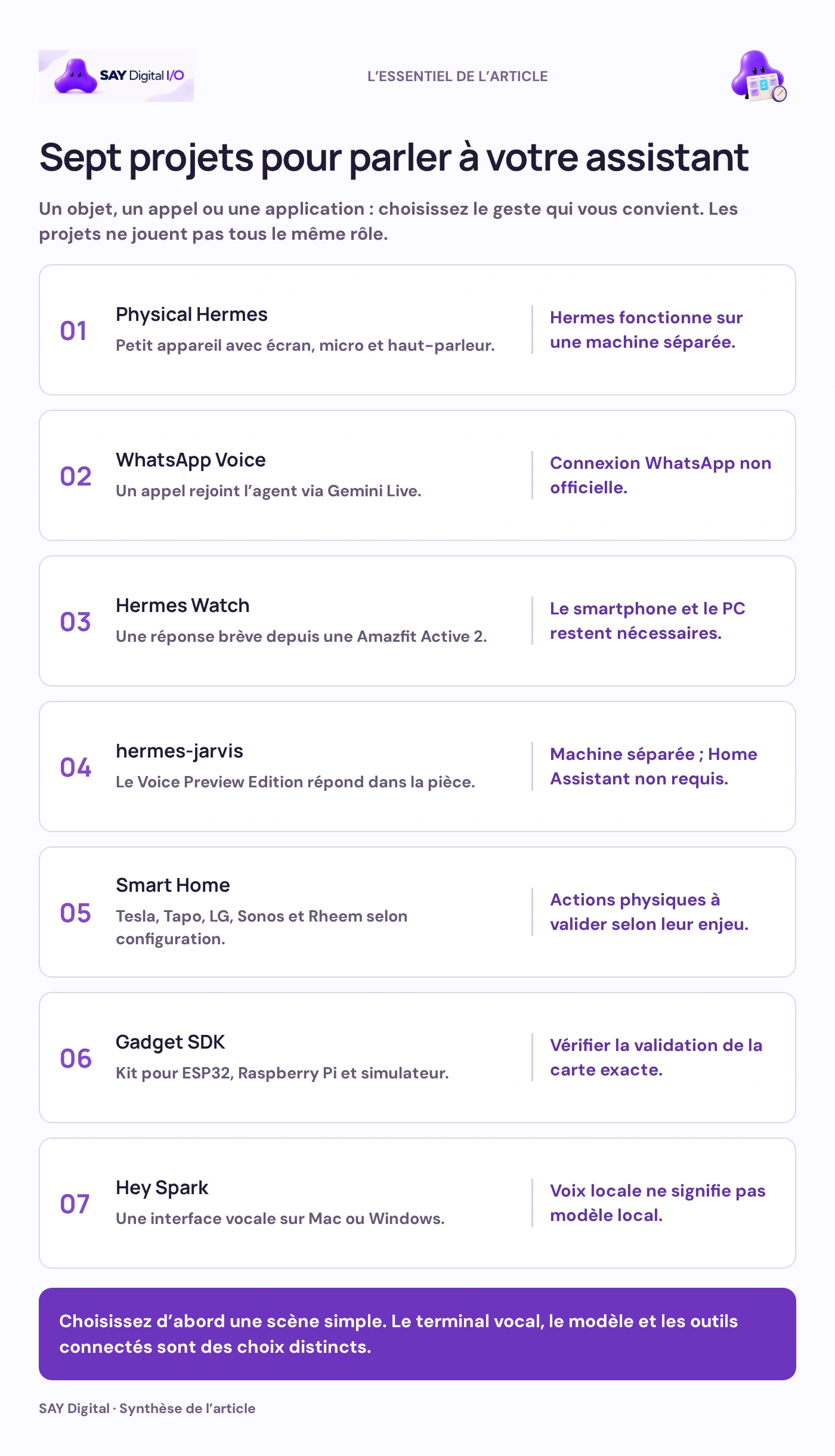
Open the full-size infographic ↗
5. Hermes Smart Home: connecting the agent to actual devices
The first four projects mainly change how you speak to an assistant. Hermes Smart Home adds something different: tools for Tesla vehicles, TP-Link Tapo plugs and switches, LG webOS televisions, Sonos speakers and Rheem water heaters.
What works depends on the devices and credentials you configure. The repository distinguishes local connections, including Tapo, LG and Sonos, from Tesla and Rheem cloud services. It is neither a universal remote nor an automatically all-local smart home.
Switching on a lamp and unlocking a car carry different consequences. The repository explicitly mentions sensitive physical commands, including opening a trunk or garage door. Start by reading a device’s status, then perhaps try one simple action on a clearly identified device. Important commands need appropriate approval; accurate speech recognition does not establish permission. Explore Hermes Smart Home.
6. Hermes Gadget SDK: build your own way in
Physical Hermes is a specific object. Hermes Gadget SDK is a software development kit for building different objects along similar lines. It includes ESP32-S3 board profiles, a Linux client for Raspberry Pi 4 or 5, and a desktop simulator. The simulator lets you explore the interface before buying a board.
The interaction stays tangible: hold a button to talk, read or hear the answer, and respond to a confirmation prompt. A developer can also expose LEDs, sensors or other gadget controls as agent tools.
This is the natural starting point if you want to choose the display format or add a sensor. It also calls for a willingness to tinker. Hardware ports remain experimental until the exact revision has a complete physical verification report. The demo server produces scripted replies; a real conversation needs Hermes and its plugin. Wake-word activation is not included. Explore Hermes Gadget SDK.
7. Hey Spark: use the microphone you already have
Hey Spark, by ContextuAI, starts with a device you may already own: a computer with a microphone. Desktop apps are offered for Windows 11 and Apple Silicon Macs running macOS 14 or later. Say “Hey Spark,” make your request and hear the answer.
Wake-word detection, transcription and speech synthesis can run locally on the CPU. The “brain” can be Claude, Hermes Agent or an OpenAI-compatible model, either local or remote. Local speech processing and local processing of the request are separate choices.
To reach services such as GitHub or a calendar, Hey Spark uses MCP connectors: bridges exposing specific functions. That does not give it automatic control over every application on your computer. The project provides spoken confirmation for tools that make changes. Businesses should also check a separate licensing detail: the bundled wake-word model has a non-commercial license, unlike the MIT-licensed code. The repository describes alternatives for commercial use. Explore Hey Spark.
Which one would you actually want to talk to?
For an object on your desk, look at Physical Hermes. For a familiar calling app, explore WhatsApp Voice with its unofficial connection in mind. The watch suits short exchanges; hermes-jarvis aims for conversation across the room. Gadget SDK is for building the object yourself, while Hey Spark avoids dedicated hardware. Smart Home belongs in a different category: it adds device actions and can complement a voice interface.
These are not seven interchangeable assistants. Some provide an entry point, one provides a toolkit, and another adds physical controls. Their value shows up in ordinary moments: asking for an address from your wrist or hearing your next appointment without putting down what you are carrying.
Start with a question you already ask often and an answer you can check. Ask it by keyboard, then by voice, using the same assistant. Notice what you have to repeat and what sends you back to a screen. If you only want to dictate text, a dictation app such as Handy serves a different purpose, without adding an assistant that takes actions.
SAY’s advice: start with a moment, not a gadget
“I want to ask about my next appointment while packing my bag” is a better starting point than “I want AI everywhere.” Choose the moment, then the interface. Keep a written answer when there are details worth reviewing. For a team, the next challenge is connecting that interface to the right information. That is the scope to discuss with SAY Digital for a useful AI Worker before adding more devices.